Take notes beside any web page
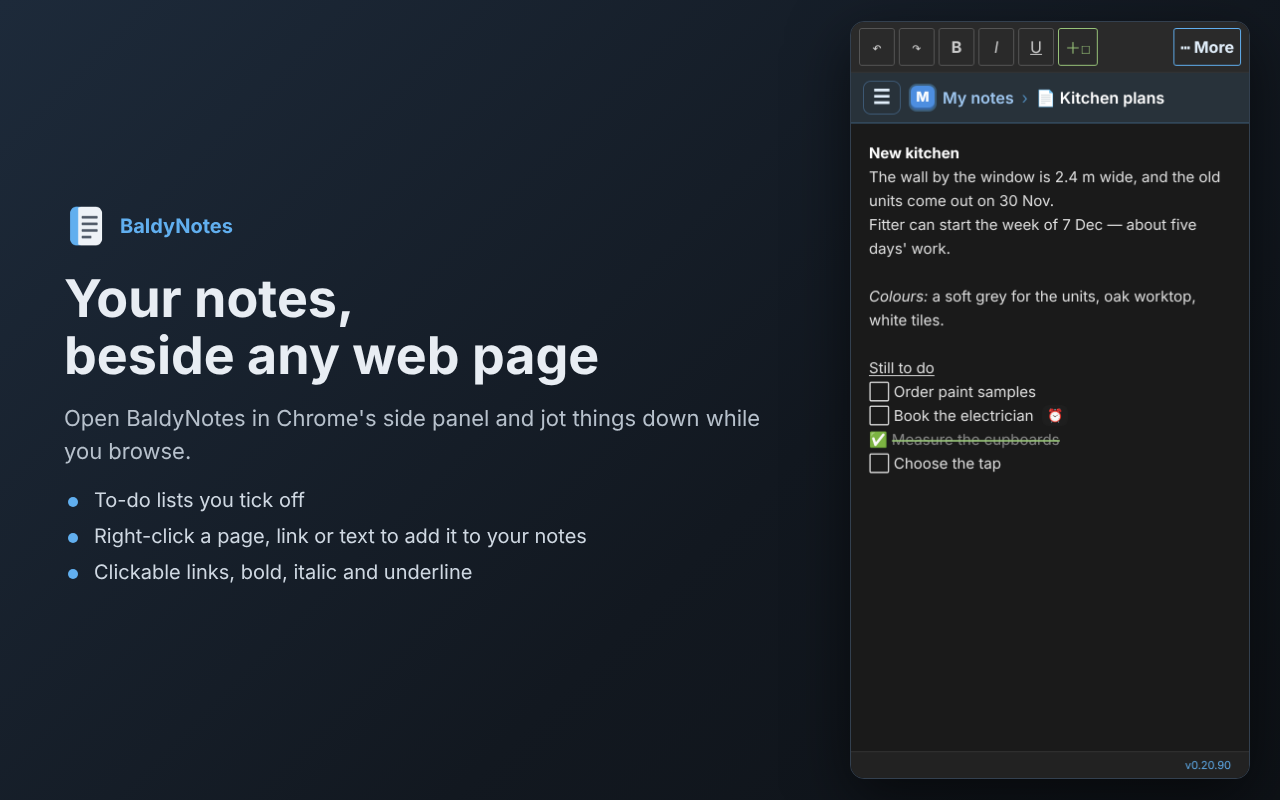
BaldyNotes opens in your browser's side panel, so your notes sit next to the page you are on. You can read, copy and write without switching tabs.
How to set it up
- Add BaldyNotes from the Chrome Web Store, Edge Add-ons or Firefox Add-ons. It is free.
- Click the BaldyNotes button in your browser's toolbar. The notes open down the side of the window.
- Start typing. Your note is saved as you go.
A new note for the page you are on
Press + Note for this website at the top of the side panel. BaldyNotes makes a new note named after the page, with a link back to it, and you can start typing. Use the arrow beside the button to put it in another group. You can also right-click a page and choose New note for this page.
Saving things from a page
- Select some text on a page, right-click and choose Add to notes.
- Right-click a link and choose Add this link to notes.
- Right-click anywhere on a page and choose Add this page to notes to keep its address.
Keeping notes in order
- Each note is a tab. Put tabs in folders, and keep separate sets of tabs in groups (for example Work and Home).
- Use bold, italic, underline, tick boxes, pictures and clickable links.
- Find and replace, and a calculator beside your note, are in the Tools menu.
Good to know
- Your notes are encrypted on your own device.
- It works without internet.
- No account is needed to use it on one device.
- No extension? The same notes app runs at baldynotes.com in any browser, including on a phone.
Try BaldyNotes
Free on one device, with no account needed. Your notes are encrypted on your own device.
More guides
- A private to-do list in your browser
- How BaldyNotes keeps your notes private
- Sync notes between your phone and computer
- A planner that shows your Google or Apple calendar
- Sketch and draw in your browser
- Send a note or a file privately to someone
- A free, private expense tracker
- Keep track of returns and warranties